File Formats
Try me


Introduction
Before we dive into data processing, let us discuss some common file formats used to store data, set the basic terminology and describe the main steps involved when dealing with data files in computer programming.
Basic explanation of how Python read files
At the end, a file is just a collection of bytes containing information for a specific purpose. In this Notebook, we will address different common file formats that contain information represented as text. Text files are composed of characters and organized in lines. In storage, characters need to be encoded into bytes. This process is called character encoding and each file may use a different character encoding, although your operating system will define a default character encoding to be used. Line breaks will be stored using a special character, and the end of the file will also be encoded as an special character. So basically, when reading a file in Python, we will read the contents line by line, until the end of file character is detected. But before we are able Another important
Opening files
After this brief explanation, with no further ado, let´s start with practice. Copy the content of the next cell in a file using a text editor (a plain text editor like Notepad or TextEdit) and save it in a file named example.txt
Hello,
This is the first file to try in Python.
Best luck!
Once you have saved it, you need to import it in your Python runtime. If you have opened this Notebook in Colabs, you need to open the lateral menu Files (the one with the folder 📁 icon), and either drag and drop the file in the area where the files and folders in your runtime are listed, or click on the button upload.
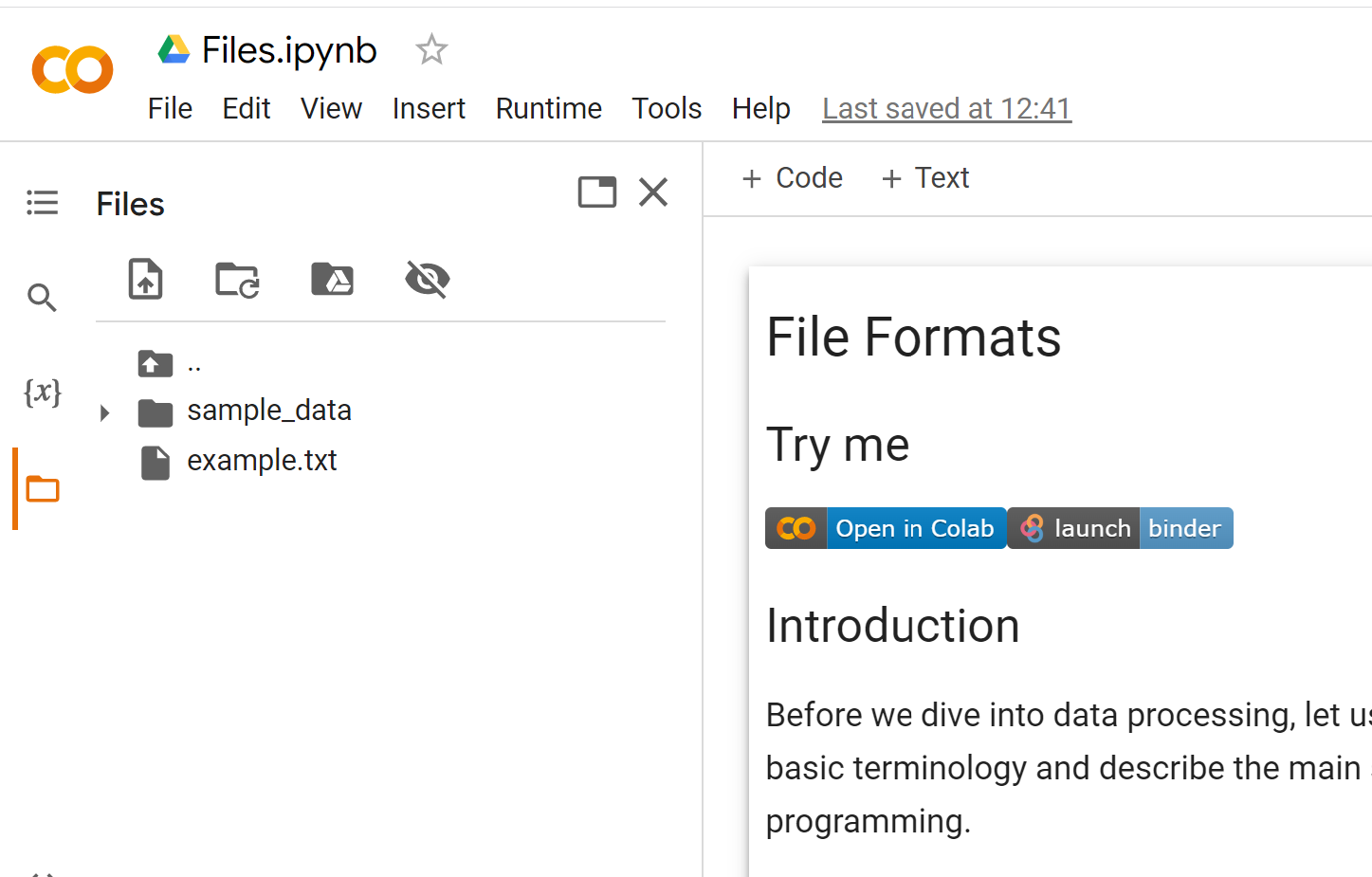
☝ Note that you can also connect your Google Drive folder to your runtime and use any file you have stored in there!
Once you have uploaded the file (and the example.txt file is available in the file system of your Python runtime, as in the figure), you are ready to test the following cell:
[1]:
f = open("example.txt")
line = f.readline() # read one line
while line: # if line is an empty string, this will evaluate to false
    print(line)
    line = f.readline() # read a new line again
f.close() # Close the file
Hello,

This is the first file to try in Python.

Best luck!
Note that we used the built-in function open() to open the file. This built-in method takes one argument with the location of the file you want to open, either relative to your Python script working directory, or absolute, from the root directory of your file system. You need to have permissions in your file system to open the file, otherwise this line might raise an error. Let us stop here for a minute to make these concepts clear.
Imagine that we are working on a Unix based file system (such as in Mac OS X or Google Colabs) and our Python script working directory is a folder called content in the root folder (the root folder for all files in the system). Imagine we want to open a file called example.txt which is stored in a folder called example1 within the content file, that is, our target file is organised as:
content
|-->example1
    |--> example.txt
...
Since the working directory is content, relative to the working directory, the file is located in the following url:
f = open('example1/example.txt')
We can also use an absolute path to the file from the root folder, as:
f = open('example1/example.txt')
Reading lines
The open() method returns a file object (assigned to variable f in the example), which has a readline() method that returns a string with the context of the next line (the first line after calling open and subsequent lines thereafter), until the end-of-file character is detected, in which case, an empty string is returned. In the example, we assign the result to the variable line in a while loop. Since an empty string evaluates to false, the example prints the file line by line
and exists the loop when the end of the file is reached.
Finally, we use the method close() to close the file. In practice, closing the file makes sure that the runtime keeps track of which files are open by which applications and takes measures to avoid inconsistencies (more on this below).
In some examples, you may find that the file is opened using the keyword with, as in the following example:
[3]:
with open("example.txt") as f:
    line = f.readline() # read one line
    while line: # if line is an empty string, this will evaluate to false
        print(line)
        line = f.readline() # read a new line again
    f.close() # Close the file
Hello,

This is the first file to try in Python.

Best luck!
The with statement assigns the result of the open() function to a variable f that only exists in the context of the indented code below it. This gives us more control to ensure that the file is loaded in memory only when it is required.
Modes
The open() function has some additional arguments worth highlighting, one is the opening mode. This argument gives additional security control to open the file, explicitly indicating what we want to do with the file in our program, so that for instance we cannot write in a file if we do not have permissions to modify it. The opening mode is specified using the characters in the table below, extracted from the official Python
documentation:
Character |
Meaning |
|---|---|
‘r’ |
open for reading (default) |
‘w’ |
open for writing, truncating the file first |
‘x’ |
open for exclusive creation, failing if the file already exists |
‘a’ |
open for writing, appending to the end of file if it exists |
‘b’ |
binary mode |
‘t’ |
text mode (default) |
‘+’ |
open for updating (reading and writing) |
Writing to a file
By default, files are opened with mode ‘rt’ or ‘r’ which is equivalent, so what we can only read lines in the file, and do not write to it. The mode ‘w’ allows us to write in the file, using the write() method, but first it truncates the file, meaning that in practice we will overwrite its contents. If we do not want to override the contents of the file, we can either use mode ‘a’ (to append content after the last line of the file), or mode ‘r+’, to read the file from the beginning and
being able to modify each line with write() before reading new lines.
In the example below, we write a small program to write a shopping list into a file using the input provided by the user:
[ ]:
with open("list.txt", 'a') as f:
  while True:
    line = input("Write something to append to the list or click Enter to exit")
    if line:
      f.write(line + "\n")
    else:
      f.close()
      break
Note that we added the special character "\n" to the method write so that each entry is written in the list is written in a new line.
Common file formats for tabular data
JSON
JSON stands for JavaScript Object Notation, since it is the notation used to define objects in this another popular programming language. Let us take a look at the concepts in the JSON acronym:
J is for Javascript, which is another very popular programming language.
S is for Serial. Serializing is the process of readying a variable piece by piece so that it can be stored in a file or sent over a communication media (for instance serial communication).
O is for Object. Objects is another word for variables
N is for Notation, which is an agreed syntax to represent an object in written form.
Ok, so, putting the pieces together, JSON is a notation or syntax defined to store variables in files in an organized way.
The JSON syntax is very simple:
Curve brackets: Are used to specify the beginning
{and end}of an object.Comma separated list of key-value pairs: Within the curve brackets, we need to specify the attributes or properties of the object. We will use what is called Key-Value pairs. The Key is the identifier (normally the name) of each individual attribute of the object, and the value is the value it takes.
Colon-separated Key-Value pairs: We will use `
:to map each attribute with its corresponding value using.
This is an example of a JSON object:
{
    "name":"Wilson",
    "surname":"Fisk",
    "alias":"Kingpin",
    "age": 49
}
Note that this object has 4 attributes, keyed name, surname, alias, and age. We can assign numeric or text values (actually, we could also use numbers as keys.
Does it seem famliar? Indeed, you are already familiar with JSON since as previously described when covering iterables: it is the same notation used to define dictionaries in Python. So, in a way, with JSON, we are just writing down Python dictionaries into files. There are however two important differences between Python dictionaries notation and the JSON file format that need to be accounted for. First, that you must always use double quotation marks, as single quotation marks are not allowed. Also, unlike Python dictionary keys, JSON field names must always be double-quoted strings.
With no further ado, let us play around with JSON. JSON files typically use the .json extension, so, for instance, copy the following contents into a file named example.json:
[
{
  "date": "2022-08-31",
  "time": "00:15",
  "temperature": 25.5,
  "humidity": 65
},
{
  "date": "2022-08-31",
  "time": "00:30",
  "temperature": 25.6,
  "humidity": 66
},
{
  "date": "2022-08-31",
  "time": "00:45",
  "temperature": 25.7,
  "humidity": 67
},
{
  "date": "2022-08-31",
  "time": "01:00",
  "temperature": 25.6,
  "humidity": 66
},
{
  "date": "2022-08-31",
  "time": "01:15",
  "temperature": 25.5,
  "humidity": 65
}
]
And load this file to your Colabs environment, let us play around a bit with it.
The json Library
The json library is a useful library to read json objects and load them to python objects or dump the contents of dictionaries to a json file. The function load takes a file object created by opening a JSON file as argument and returns a Python object with the contents of the file. For instance, copy the JSON example above in a file named example.json and give a try to the code snippet below:
[16]:
import json
example_file = open('example.json')
my_example_dict = json.load(example_file)
print(my_example_dict[0]["temperature"])
25.5
Note that with json.load(example_file) we have loaded the json file into a Python list my_example_dict. We can use indexing to access the first element of the list, (my_example_dict[0] returns the first element of the list) and since each element of the list is a dictionary, we can use the key temperature to access the value of the temperature reading of the first record.
Similarly, we can save the objects of a dictionary using the function dump():
[19]:
my_dict = {"name": "Wilson", "surname": "Fisk", "age": 52}
my_file = open('kingpin.json', 'w')
json.dump(my_dict,my_file)
my_file.close()
Exercise 1: Patients form
Ok, let us build a simple program. We are going to build an interactive form, asking patients to fill in some basic information like name, surname, age, and gender using the function input. Our program will use a patient ID code to identify the patient. Fill in the next code cell to complete the exercise
[ ]:
patient_id = 'WA0001'
patients_data = {"patient_id": patient_id}
patient_keys = ("name", "surname", "age", "gender")

# Initialize my_dict variable as dictionary containing the unique identifier
my_dict = {"patient_id": patient_id}
# Iterate over the patient keys:
for patient_key in patient_keys:
    # TODO: Complete the next line to prompt the user with a message to ask for the required information field
    # patient_value = input(f"TO COMPLETE ")
    my_dict[patient_key] = patient_value

# TODO: Open a file named 'WA0001.json' and dump the my_dict variable
Comma separated values
The simplest file format for tabular data which is still widely used nowadays is called CSV (Comma Separated Values). Just as its name indicates, in CSV files, each line represents a different row or record, and the values corresponding to each column are separated by commas, for instance:
DATE, TIME, TEMPERATURE, HUMIDITY
2022-08-31, 00:15, 25.5, 65
2022-08-31, 00:30, 25.7, 66
2022-08-31, 00:45, 25.9, 67
2022-08-31, 01:00, 25.7, 66
2022-08-31, 01:15, 25.5, 65
In this example, the CSV file collects records of temperature and humidity readings, with four columns, a data column containing the date of the reading, a time column containing the time of the reading, and read temperature and humidity. Normally, csv files use the *.csv file extension. Note that the first row is a header row, used to facilitate the use of the file by humans.
You can write data to CSV files and read lines from CSV files just as with any other text
Exercise 2: Loading CSV files
Now, using the skills you gained from the previous section, can you make a Python script to read a file and calculate the average temperature? Save the contents of the CSV file above in a file named exercise2.csv and use the examples above in the file section to read its contents.
[ ]:
# TODO: Complete to open the csv file:
file_name = ""

# Initialize a variable to store the mean temperature
sum_temp = 0
num_readings = 0
with open(file_name) as f:
    line = f.readline() # read one line
    while line: # if line is an empty string, this will evaluate to false
        line = f.readline() # read a new line again
        num_readings += 1 # add 1 to the number of measurement readings
        # TODO: Complete the statement to Parse the line, and get the temperature reading
        # (Hint 1: You can use the string method split() to split the row into fields)
        # (Hint 2: split() will return a list of strings, so you can use indexing to get the temperature readings)
        # (Hint 3: make sure you conver the string to a float number!)
        temp_reading =
        # Finally, add the parsed value to the accumulated temperature
        sum_temp += temp_reading
    f.close() # Close the file

if num_readings: # This will be true if we read at least 1 line
    avg_temp = sum_temp / num_readings
else:
    avg_temp = 0

print(avg_temp)
Exercise 3: Sensor readings to CSV File
Let´s start with an example which could be really handy for your IoT projects. In this example, we will use the module random to generate random sensor readings from a biometric sensor and store them in a CSV file. The CSV file will have the following format:
Time, Heart Rate, Blood Pressure, Body Temperature
2023-10-12 00:00:00, 80, 120, 36.5
2023-10-12 00:00:01, 81, 121, 36.6
2023-10-12 00:00:02, 82, 122, 36.7
We will use the following functions:
range(n)returns an iterable object that contains the numbers from 0 ton - 1. Check the documentation for more information.random.uniform(a, b)returns a random floating point number betweenaandb. Check the documentation for more information.time.strftime(format)returns a string representing the current time, formatted according to the given format. Check the documentation for more information.time.sleep(seconds): suspends the execution of the current thread for the given number of seconds. Check the documentation for more information.
We will also use formatted strings to write the sensor readings to the file. Check the tutorial on string variables for more information.
[ ]:
import random  # We will use the random module to fake sensor readings
import time    # We will use the time module to get the current time

patient_id = 'WA1001' # The ID of the patient

with open('sensor_readings_WA1001.csv', 'w') as sensing_file:
    # Write the header line
    sensing_file.write('Time, Heart Rate, Blood Pressure, Body Temperature\n')

    # Write the sensor readings every second for 10 minutes
    for i in range(10):
        # Generate random sensor readings
        heart_rate = random.uniform(60.0, 100.0)
        #TODO: Generate random blood pressure and body temperature readings

        # Get the current time
        current_time = time.strftime('%Y-%m-%d %H:%M:%S')

        # Write the sensor readings to the file
        #TODO: Complete to Write a line with the random sensor readings to the file
        # (Hint 1) use formatted strings and do not forget to terminate the line with \n
        sensing_file.write(f"{current_time}, {heart_rate}\n")
        # Wait for 1 second
        time.sleep(1)
Custom field separators
Although the name states that fields are separated by commas, but you can use other field separators. Another common field separator is the tabulation, as in the following example:
DATE TIME TEMPERATURE HUMIDITY
2022-08-31 00:15 25.5 65
2022-08-31 00:30 25.7 66
2022-08-31 00:45 25.9 67
2022-08-31 01:00 25.7 66
2022-08-31 01:15 25.5 65
Note that instead of commas, we have used tabulations (special character "\t"). These type of CSV files usually use the extension *.tab and are convenient because you can just copy or drag and drop content from applications like Google sheets or Excel into a text editor to create a tab file.
IoT Challenge: Data Logging in Python
In this activity, we will extend the Python script of the IoT challenge template available here to log data received from the Arduino to a CSV file. This data can be analyzed later for trends, helping with decision-making in your application.
We are going to implement this data logging functionality as an additional option called continuous mode. The image below illustrate how the continuous mode works

Basically, we will send commands to the Arduino device to read sensor data, and whenever we collect new data, we will print it to the console, but also put in a dictionary, that we will later save into a CSV file. In this mode, we will repeat these steps in an endless loop, so we will send information back and forth in the serial without the need to get input from the user. All the information will be stored in the file, and we will be able to use this data for analysis. This mode has the advantage that we can collect data from the device without the need to send a user command to the device every time we want to read the sensors. This is useful when we want to collect data from the device for a long period of time.
Example code
Here’s the complete example code. Note that we have used the same sensor data as in the Arduino part example. Make sure you adapt to your application!
[ ]:
import serial
import time
import random

# Initialize the port variable.
# If you already know the serial port where the Arduino board is connected,
# you need to assign it to this variable, replacing None with the actual name of the port.
# For instance, if your Arduino board is connected to port COM7, you can use the line below
# port = 'COM7'
# TODO: Find out the name of the port you use to connect to Arduino and update the variable
# definition
port = None

# Initialize serial communications. Set the baud rate to 96000 bps.
if port is not None:
    arduino = serial.Serial(port, 9600, timeout=1)

simulation_mode = True # Set this variable to True to simulate the data
if port is not None or simulation_mode:
    print(" _      __    __")
    print("| | /| / /__ / /______  __ _  ___")
    print("| |/ |/ / -_) / __/ _ \\/  ' \\/ -_)")
    print("|__/|__/\\__/_/\\__/\\___/_/_/_/\\__/")

    print("Welcome to the Arduino control panel")
    print("You can use the following commands:")
    print("1. Read humidity")
    print("2. Read temperature")
    print("3. Read humidity and temperature")
    print("4. Read soil moisture")
    print("5. read all in continuous mode")
    print("Press Ctrl+C to exit")
    while True:

        command = input("Enter command: ")
        if command in ['1', '2', '3', '4'] and not simulation_mode:
            signal = command.encode('utf-8') # Convert the command to a binary string
            arduino.write(signal) # Send the command to the device
            arduino.flush() # Wait until the command is sent
            raw_data = arduino.readline() # Read the data from the device
            print(raw_data) # Print the response from the device
        elif command == '5':
            print("Entering continuous mode. Press Ctrl+C to exit")
            while True:
                time.sleep(1) # Wait for 1 second
                # Let´s put the data in a dictionary.
                data = {"timestamp": time.strftime("%Y-%m-%d %H:%M:%S")}

                if simulation_mode: # If we are in testing mode, we will simulate the data
                    data["humidity"] = random.randint(0, 100)
                    data["temperature"] = random.randint(0, 100)
                    data["soil_moisture"] = random.randint(0, 1000)
                else: # If we are not in testing mode, we will read the data from the device
                    # First send a signal to read humidity and temperature
                    signal = b'3'
                    arduino.write(signal) # Send the command to the device
                    arduino.flush() # Wait until the command is sent
                    raw_data = arduino.readline() # Read the data from the device

                    #Incoming data is in the format b'Humidity: 50.00 % Temperature: 23.00 \n'
                    # We need to split the string into a list of strings
                    raw_data = raw_data.decode('utf-8').strip().split(' ')
                    # Now we need to convert the strings to floats and add them to the dictionary
                    data["humidity"] = float(raw_data[1])
                    data["temperature"] = float(raw_data[4])
                    time.sleep(1) # Wait for 1 second
                    # Now send a signal to read soil moisture
                    signal = b'4'
                    arduino.write(signal) # Send the command to the device
                    arduino.flush() # Wait until the command is sent
                    raw_data = arduino.readline() # Read the data from the device
                    # Incoming data is in the format b'Soil Moisture: 350 \n'
                    # Decode the data and split it into a list of strings
                    raw_data = raw_data.decode('utf-8').strip().split(' ')
                    # Get the soil moisture value and store it in the dictionary
                    data["soil_moisture"] = float(raw_data[2])

                print(data)
                # Now we can save incoming data into the file. We need to open the file in append mode, and check whether the file contains previous data
                with open("data.csv", "a+") as f:
                    # First we need to check whether the file contains previous data
                    f.seek(0) # Move the cursor to the beginning of the file
                    previous_data = f.read() # Read the file
                    if previous_data == "": # If the file is empty, we need to add the header
                        f.write("timestamp,humidity,temperature,soil_moisture\n")
                        # Now we can write the data to the file
                        f.write(f"{data['timestamp']},{data['humidity']},{data['temperature']},{data['soil_moisture']}\n")
                    else: # If the file is not empty, we just need to move the cursor to the end of the file and add the data
                        f.seek(0, 2) # Move the cursor to the end of the file
                        f.write(f"{data['timestamp']},{data['humidity']},{data['temperature']},{data['soil_moisture']}\n")
        else:
            print("Invalid command")
Note that the strategy is very simple: we use device commands to collect sensor data, and we store the sensor values in a dictionary named data. Finally, we open the file in a+ mode so that we can append data. This means that if the file already contains some records we will not overwrite them, but instead, we will append new data to the file.
And this is it! We have successfully established a serial connection with the Arduino board, and we have used it to control the device. We have also saved the data in a file!