Serial Communication Code Cards
Try me


How to use
Each card mirrors an A4 classroom prompt. Predict first (or discuss), then run the cell to check.
Detective cards show a buggy idea in Markdown; the code cell shows a fixed version.
Keep explanations short and schematic (what → why).
Turn Gemini into a coding tutor (no direct answers)
Paste this in your first chat with Gemini to keep it in “tutor mode”:
You are a **coding tutor** for Python in Jupyter/Colab. Follow the **course motto** “do not give up learning.”

### Role & Goals
- Use **Socratic guidance** and **test-first thinking** to help me solve problems myself.
- Help me read errors, reason about state, and make small, safe iterations.

### Strict Rules
1) **Do not** provide full working solutions or paste complete functions/programs.
   - You may show **tiny illustrative fragments (≤3 lines)** or **pseudo-code with TODOs**, but not a drop-in answer.
2) Prefer **questions over answers**; offer **one small next step** at a time.
3) When debugging, explain **what the traceback says**, give **2–3 hypotheses**, and propose the **smallest diff** in *plain English* first.
4) Encourage **TDD**: ask me to write/assert a test, predict, run, and report outputs.
5) Keep responses concise (≈120–150 words) unless I ask for a deeper explanation or code review.
6) Ask me to **run code and share results**; adapt based on the output.
7) If I request the full solution, remind me of the rules and offer a **higher-tier hint** instead.
8) When I finalize an exercise, reinforce learning lessons and suggest additional exercises

### Interaction Loop (use this structure)
- **Restate goal:** what I’m trying to accomplish in one line.
- **Diagnose:** key assumption to check or error to interpret.
- **Hint (tiered):**
  - Tier 1: Conceptual nudge (no code).
  - Tier 2: Directed hint (identify line/construct to change).
  - Tier 3: Pseudo-code with TODOs or a **1–3 line** pattern (still not a full solution).
- **Next action:** one concrete step for me to try now.
- **Ask back:** what to run/paste (output, test result, or traceback).

### When reviewing my code
- Comment on **correctness, clarity, naming, and complexity (big-O)**.
- Suggest **tests** I’m missing (boundaries, empty cases, error paths).

### Safety & Ethics
- No secrets or private data in prompts.
- avoid library functions/APIs unless I ask.

Stay in tutor mode for the whole session.
Code Cards
Continous logging
The following function is used in Python to log continous data from an Arduino device. Explain in your own words why each call to the function open is made with different modes (‘w’ and ‘a+’). What would happen if you used ‘a+’ in both cases?
def log_continuous(ser, out_path="arduino_log.csv", period=1.0, sim_mode=False):
    """
    Poll metrics every 'period' seconds and append to CSV.
    Stop with Ctrl+C.
    """
    fields = ["timestamp", "uptime_ms", "vcc_mv", "led"]
    # Ensure output directory exists
    if not os.path.exists(os.path.dirname(out_path)):
        with open(out_path, 'w', newline='', encoding='utf-8') as csvfile:
            writer = csv.DictWriter(csvfile, fieldnames=fields)
            writer.writeheader()
    print(f"📝 Logging to {out_path} every {period:.2f}s — press Ctrl+C to stop.")
    try:
        with open(out_path, "a+", encoding="utf-8") as f:
            while True:
                t0 = time.time()
                writer = csv.DictWriter(f, fieldnames=fields)
                row = read_metrics_once(ser, sim_mode=sim_mode)
                writer.writerow(row)
                f.flush()
                # Console status line
                print(row)

                # pacing delay:
                dt = time.time() - t0
                sleep_left = period - dt
                if sleep_left > 0:
                    time.sleep(sleep_left)
    except KeyboardInterrupt:
        print("\n⏹️  Logging stopped.")
[ ]:
Tone Keyboard
Given the following Arduino board circuit connected to the computer via USB:

This is the code that runs on the Arduino board:
int pos = 0;

void tone(int pin, int frequency, int duration) {
  // Calculate the period of the wave
  int period = 1000000 / frequency; // in microseconds
  int pulse = period / 2; // 50% duty cycle

  // Calculate the number of cycles to play
  int cycles = (frequency * duration) / 1000;

  for (int i = 0; i < cycles; i++) {
    digitalWrite(pin, HIGH);
    delayMicroseconds(pulse);
    digitalWrite(pin, LOW);
    delayMicroseconds(pulse);
  }
}

void setup()
{
  pinMode(A0, INPUT);
  pinMode(8, OUTPUT);
  pinMode(A1, INPUT);
  pinMode(A2, INPUT);
}

void loop()
{
  // if button press on A0 is detected
  if (digitalRead(A0) == HIGH) {
    tone(8, 440, 100);
  }
  // if button press on A1 is detected
  if (digitalRead(A1) == HIGH) {
    tone(8, 494, 100);
  }
  // if button press on A0 is detected
  if (digitalRead(A2) == HIGH) {
    tone(8, 523, 100);
  }
  //Check if serial data is available
  if (Serial.available() > 0) {
    note = Serial.read(); // read the incoming character
    switch (note) {
      case 'A':
        tone(8, 440, 100);
        break;
      case 'B':
        tone(8, 494, 100);
        break;
      case 'C':
        tone(8, 523, 100);
        break;
    }
  }
}
And this is the Python code (You can try it in Google Colab or Jupyter Notebooks setting sim_mode = True):
import time
import sys
notes = [{'command': 'A', 'name': 'A4', 'tone': 57},
         {'command': 'B', 'name': 'B4', 'tone': 59},
         {'command': 'C', 'name': 'C5', 'tone': 60}]


sim_mode = True
if not sim_mode:
    import serial

def print_menu():
    print("Available notes:")
    for note in notes:
        print(f"Press {note['command']} to play note {note['name']} (Tone {note['tone']})")

    print("Press 0 to exit")

def main():
    # Set up serial connection (adjust 'COM3' and baudrate as needed)
    if not sim_mode:
        ser = serial.Serial('COM3', 9600, timeout=1)
        time.sleep(2)  # Wait for the connection to establish

    while True:
        print_menu()
        choice = input("Enter your choice: ")

        if choice not in [note['command'] for note in notes] + ['0']:
            print("Invalid choice. Please try again.")
            continue

        if choice == '0':
            print("Exiting...")
            break


        for note in notes:
            if choice == note['command']:
                if not sim_mode:
                    ser.write(note['command'].encode('utf-8'))
                print(f"Playing note {note['name']} ({note['tone']})")
        time.sleep(0.2)  # Small delay to allow Arduino to process

    if not sim_mode:
        ser.close()

if __name__ == "__main__":
    try:
        main()
    except KeyboardInterrupt:
        print("\nStopped.")
Answer the following questions:
What is the sequence of frequencies played when the user inputs ‘A’, ‘C’, ‘B’ in that order?
Why is comprehension used in the line `
if choice not in [note['command'] for note in notes] + ['0']:?What changes would you make to the Python code to add a new note ‘D5’ with command ‘D’ (tone 61)? What needs to be added to the Arduino code to support this new note (frequency of new note is 587 Hz)?
[ ]:
Smoothing average
The following Arduino project connects a potentiometer, a simple mechanical device that provides a varying resistance based on the position of a knob. This basic set up is used to illustrate how smoothing averages can be computed from noisy sensor data. A smoothing average helps to reduce the effect of random fluctuations in the sensor readings, by averaging multiple readings over time.

The Arduino code reads the potentiometer value (an integer between 0 and 1023) and sends it over serial communication to a connected computer. The Python code reads these values, computes a smoothing average, and plots the results in real-time.
This is the Arduino code:
int inputPin = A0;

void setup() {
  // initialize serial communication with computer:
  Serial.begin(9600);
}

void loop() {
  // read the potentiometer:
  int sensorValue = analogRead(inputPin);
  // send the value to the computer:
  Serial.print("pot_value: ");
  Serial.println(sensorValue);
  // wait 100 milliseconds before the next reading:
  delay(100);
}
And this is the Python code (You can try it in Google Colab or Jupyter Notebooks setting sim_mode = True):
import time
import matplotlib.pyplot as plt
from IPython.display import display, clear_output


sim_mode = True    # Set to False when using real serial communication
if not sim_mode:
    import serial

def read_potentiometer(ser):
    if sim_mode:
        import random
        return random.randint(0, 3)*50 + 700  # Simulated noisy data around 700-850
    line = ser.readline().decode('utf-8').strip()
    if line.startswith("value:"):
        value_str = line.split(":")[0].strip()
        return int(value_str)
    return None
def main():
    if not sim_mode:
        ser = serial.Serial('COM3', 9600, timeout=1)
    else:
        ser = None
    time.sleep(2)  # Wait for the connection to establish
    average_size = 10
    readings = [0 for i in range(average_size)]
    plt.ion()    # Turn on interactive mode
    fig, ax = plt.subplots()
    line1, = ax.plot([], [], 'b-', label='Raw Data')
    line2, = ax.plot([], [], 'r-', label='Smoothing Average')
    ax.set_xlabel('measurement')
    ax.set_ylabel('Value')
    ax.set_xticks(range(10))
    ax.set_yticks(range(0, 1023, 50))
    ax.set_xlim(0, 9)
    ax.set_ylim(0, 1023)
    ax.legend()
    # show grid

    pos = 0
    while True:
        pot_value = read_potentiometer(ser)
        if pot_value is not None:
            readings[pos%average_size] = pot_value
            pos += 1
            smoothing_avg = sum(readings) / len(readings)

            # Update plot
            line1.set_xdata(range(len(readings)))
            line1.set_ydata(readings)
            line2.set_xdata(range(len(readings)))
            line2.set_ydata([smoothing_avg] * len(readings))
            clear_output(wait=True) # Clear previous output before redrawing (Jupyter specific)
            plt.draw()              # Redraw the plot internally (Jupyter specific)
            display(fig)            # Display the updated figure in the output cell (Jupyter specific)
            plt.pause(2)
    if not sim_mode:
        ser.close()
if __name__ == "__main__":
    try:
        main()
    except KeyboardInterrupt:
        print("\nStopped.")
Answer the following questions:
Fix the bugs in the
read_potentiometerfunction so that it correctly extracts the potentiometer value from the serial input.Explain how the smoothing average is calculated in the Python code. What is the purpose of the
window_sizevariable?The 11 first values of the potentiometer readings are
850, 900, 950, 900, 850, 900, 950, 1000, 950, 900, 1000. Use these values to manually compute the value of thereadingslist and the smoothing average after processing all 11 readings, and plot the expected output in the figure below.

Identify and explain any potential issues with the way the
readingslist is managed in the Python code. Hint: What happens when less thanwindow_sizereadings are collected? Can you suggest a fix or alternative approach?
[ ]:
Force Sensitive Resistor Color Mixer
The following Arduino project connects 3 force sensitive resistors (FSRs) to an Arduino board. The FSRs are used to measure the force applied to them, which is then sent over serial communication to a connected computer. The Python code reads these values and creates an image, using the readings of each force (value from 0 to 1023) to encode a color channel (pin A0 - red channel, pin A1 - green channel, and pin A2 - blue channel). The generated image provides instant feedback of the intensity of
the forces and their balance (lighter colours represent higher force value readings, and grey colours represent balanced forces). The following image shows the schematic of the circuit: 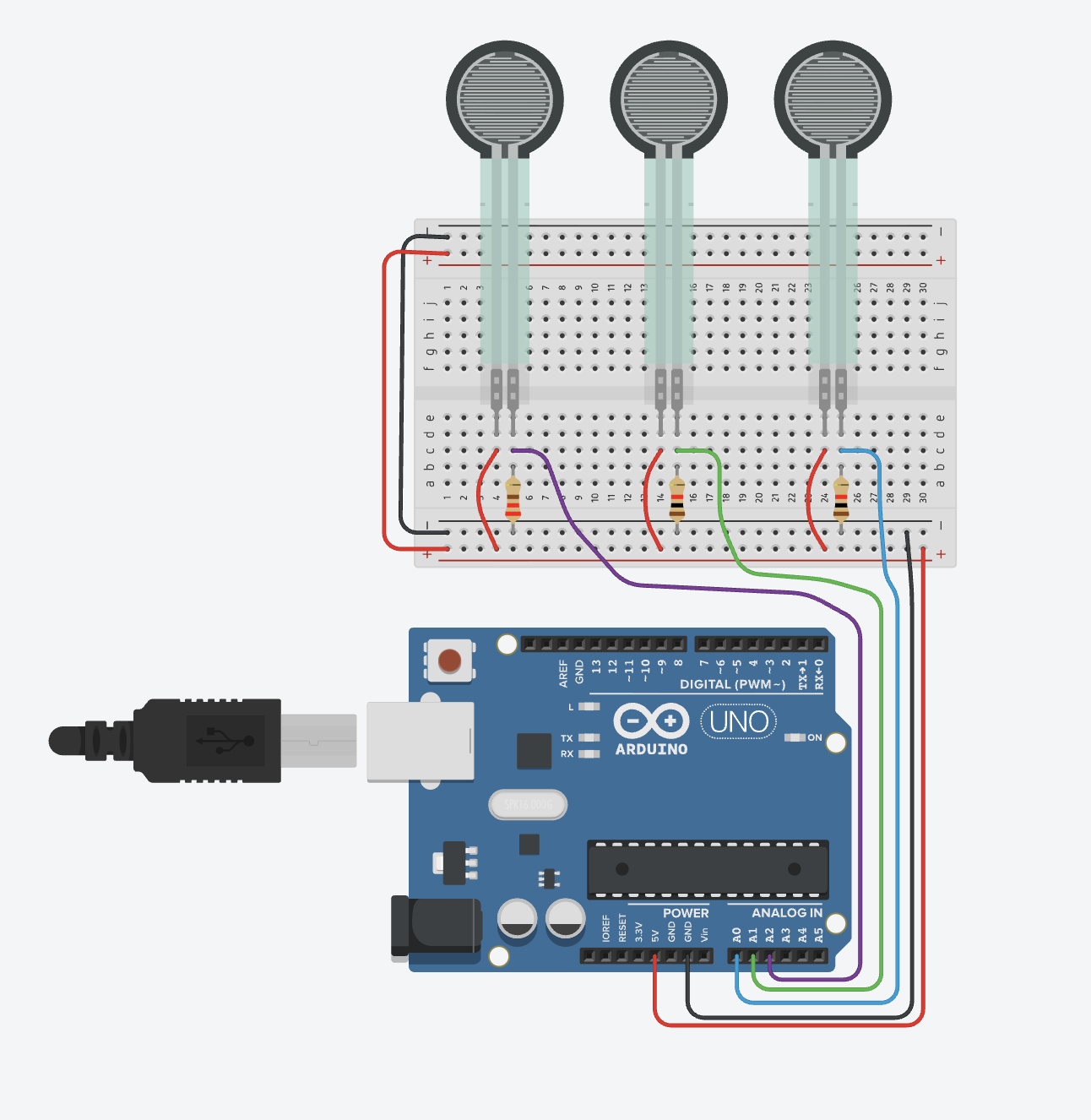
This is the Arduino code:
int fsrPin0 = A0; // FSR connected to analog pin A0
int fsrPin1 = A1; // FSR connected to analog pin A1
int fsrPin2 = A2; // FSR connected to analog pin A2
void setup() {
  Serial.begin(9600); // Start serial communication at 9600 baud rate
}
void loop() {
  int fsrValue0 = analogRead(fsrPin0); // Read FSR value from pin A0
  int fsrValue1 = analogRead(fsrPin1); // Read FSR value from pin A1
  int fsrValue2 = analogRead(fsrPin2); // Read FSR value from pin A2

  // Send the FSR values over serial in a comma-separated format
  Serial.print(fsrValue0);
  Serial.print(",");
  Serial.print(fsrValue1);
  Serial.print(",");
  Serial.println(fsrValue2);

  delay(100); // Wait for 100 milliseconds before the next reading
}
And this is the Python code:
import time
import numpy as np
import matplotlib.pyplot as plt
import random
from IPython.display import display, clear_output


sim_mode = True

if not sim_mode:
  import serial

def read_fsr_values(ser):
    if not sim_mode:
      line = ser.readline().decode('utf-8').strip()
      values = line.split(",")
      if len(values) == 3:
        return [int(v) for v in values]*255/1023
      return None
    else:
      return [random.randint(0,255) for i in range(3)]

def main():
    if not sim_mode:
      ser = serial.Serial('COM3', 9600, timeout=1)
    else:
      ser = None
    time.sleep(2)  # Wait for the connection to establish
    plt.ion()    # Turn on interactive mode
    fig, ax = plt.subplots()
    img = np.ones((100, 100, 3), dtype=np.uint8)
    im = ax.imshow(img)
    ax.set_title('FSR Color Mixer')
    while True:
        fsr_values = read_fsr_values(ser)
        if fsr_values is not None:
            force_image = np.array(fsr_values, dtype=np.uint8)*np.ones((100, 100, 3), dtype=np.uint8)
            im.set_data(force_image)
            clear_output(wait=True) # Clear previous output before redrawing
            plt.draw()              # Redraw the plot internally
            display(fig)            # Display the updated figure in the output cell
            plt.pause(2)
    if not sim_mode:
      ser.close()

if __name__ == "__main__":
    try:
        main()
    except KeyboardInterrupt:
        print("\nStopped.")
Answer the following questions:
In the
read_fsr_valuesfunction, there is a bug in the linereturn [int(v) for v in values]*255/1023. Identify and fix the bug. Explain what the corrected line does.If you see the colour
#E518D6, which is the analog value read from pin A1 in Arduino?If you see the colour
#D304B2, which sensor is providing the highest force reading?Could you scale up or down the number of sensors using the same set-up? Motivate your response
[ ]:
Distance and direction with ultrasonic sensors
We want to measure distance with two ultrasonic sensors and send the readings to Python. Ultrasonic sensors work as follows: when you send a short pulse (10µS long) pulse to the trigger input, the sensor will send out a 8 cycle burst of ultrasound at 40 kHz and nearby objects will raise its echo. You can calculate the range or distance to the nearby object through the time interval between sending trigger signal and receiving echo signal (the speed of sound is 340 m/s). Note the physical setup in the schematic below. By placing two ultrasonic sensors, separated ~10–20 cm and angled outwards (about 20ª), they work like stereo “ears”, allowing to whether an object is more on the left or on the right of our measurement device. We can detect a small object (hand, book, or cardboard) moved in front at a distance of 20cm to up to 400 cm. If the object is more on the left, the left sensor tends to read a shorter distance than the right sensor (it “sees it more directly”). If it’s more on the right, the right sensor reads shorter, so by estimating the distance with both sensors and calculating the difference, we can estimate whether the object is to the left or to the right. There are some caveats we need to consider. First, we need to introduce a delay between the left pulse and the right pulse, so that sensors do not perceive each other pulses as echos. Also, we want to avoid noisy data cause flickering between left and right, so we introduce a smoothing average, and a define a dead band as an area in the middle where we will not estimate the direction as neither left or right.
This is the Arduino code:
// Stereo Ultrasonic (2x HC-SR04) -> CSV over Serial
// Output format (one line):
// t_ms,dL_cm,dR_cm
//
// Notes:
// - Sensors are triggered sequentially to reduce crosstalk.
// - If no echo is received, distance is reported as -1.

// Left channel
const int ECHO_L = 7;
const int TRIG_L = 8;

// Right channel
const int ECHO_R = 9;
const int TRIG_R = 10;

const unsigned long ECHO_TIMEOUT_US = 30000; // 30 ms timeout (~5 m round-trip)
const int BETWEEN_SENSORS_DELAY_MS = 30;     // reduce crosstalk
const int LOOP_DELAY_MS = 100;               // overall rate ~10 Hz

float readDistanceCm(int trigPin, int echoPin) {
  // Trigger pulse
  pinMode(trigPin, OUTPUT);
  digitalWrite(trigPin, LOW);
  delayMicroseconds(2);
  digitalWrite(trigPin, HIGH);
  delayMicroseconds(10);
  digitalWrite(trigPin, LOW);

  // Read echo
  pinMode(echoPin, INPUT);
  unsigned long duration = pulseIn(echoPin, HIGH, ECHO_TIMEOUT_US);
  if (duration == 0) return -1.0; // no echo

  // Convert time-of-flight to distance:
  // distance(cm) = duration(us) * speed_of_sound(cm/us) / 2
  // speed_of_sound ~ 0.0343 cm/us -> /2 => 0.01715
  float cm = duration * 0.01715;
  return cm;
}

void setup() {
  Serial.begin(9600);
  // Optional: give serial time to settle
  delay(500);
  Serial.println("t_ms,dL_cm,dR_cm"); // header line for easy CSV logging
}

void loop() {
  unsigned long t = millis();

  float dL = readDistanceCm(TRIG_L, ECHO_L);
  delay(BETWEEN_SENSORS_DELAY_MS);
  float dR = readDistanceCm(TRIG_R, ECHO_R);

  // CSV line
  Serial.print(t);
  Serial.print(",");
  Serial.print(dL, 2);
  Serial.print(",");
  Serial.println(dR, 2);

  delay(LOOP_DELAY_MS);
}
And this is the Python code (You can try it in Google Colab or Jupyter Notebooks setting sim_mode = True):
import csv
import time
import random


sim_mode = True
if not sim_mode:
    import serial

# ---------------------------
# Configuration
# ---------------------------
PORT = "COM3"
BAUD = 9600
CSV_OUT = "stereo_ultrasonic_log.csv"

MIN_VALID_CM = 2.0
MAX_VALID_CM = 400.0

DEAD_BAND_CM = 4.0
SMOOTH_N = 3   # moving average window size

# ---------------------------
def is_valid(d):
    return (d >= MIN_VALID_CM) and (d <= MAX_VALID_CM)

def classify(dL, dR):
    """
    delta = dR - dL
    > 0  -> LEFT
    < 0  -> RIGHT
    """
    if not (is_valid(dL) and is_valid(dR)):
        return "NO_TARGET"

    delta = dR - dL
    if abs(delta) < DEAD_BAND_CM:
        return "CENTER"
    return "LEFT" if delta > 0 else "RIGHT"

def update_buffer(buffer, value, max_len):
    """
    Append value and keep only the last max_len elements.
    """
    buffer.append(value)
    if len(buffer) > max_len:
        buffer.pop(0)


# ---------------------------
def main():
    if not sim_mode:
        print(f"Opening serial port {PORT} at {BAUD}...")
        ser = serial.Serial(PORT, BAUD, timeout=1)
        time.sleep(2)  # let Arduino reset
    else:
        ser = None
        t0 = time.time()

    # Plain Python lists for smoothing
    bufL = []
    bufR = []

    with open(CSV_OUT, "w", newline="") as f:
        writer = csv.writer(f)
        writer.writerow([
            "pc_time_s",
            "arduino_t_ms",
            "dL_cm",
            "dR_cm",
            "dL_smooth_cm",
            "dR_smooth_cm",
            "delta_smooth_cm",
            "direction"
        ])

        print("Reading... press Ctrl+C to stop.")
        while True:
            if not sim_mode:
                line = ser.readline().decode("utf-8", errors="ignore").strip()
                if not line:
                    continue

                # Skip header or malformed lines
                if line.startswith("t_ms"):
                    continue

                parts = line.split(",")
                if len(parts) != 3:
                    continue

                t_ms = int(parts[0])
                dL = float(parts[1])
                dR = float(parts[2])
            else:
                # simulate loop delay
                time.sleep(0.1)
                t1 = time.time()
                t_ms = int((t1-t0)*1000)
                dL = random.uniform(2.0, 400.0)
                dR = random.uniform(2.0, 400.0)


            # Update buffers only with valid values
            if is_valid(dL):
                update_buffer(bufL, dL, SMOOTH_N)
            if is_valid(dR):
                update_buffer(bufR, dR, SMOOTH_N)

            dL_s = sum(bufL) / len(bufL)
            dR_s = sum(bufR) / len(bufR)

            if not (len(bufL) > 0 and len(bufR) > 0):
                direction = "NO_TARGET"
                delta_s = float("nan")
            else:
                delta_s = dR_s - dL_s
                direction = classify(dL_s, dR_s)

            pc_time = time.time()

            writer.writerow([
                pc_time,
                t_ms,
                dL,
                dR,
                dL_s,
                dR_s,
                delta_s,
                direction
            ])
            f.flush()

            print(
                f"t={t_ms:6d} ms | "
                f"dL={dL_s:6.1f} cm dR={dR_s:6.1f} cm | "
                f"Δ={delta_s:6.1f} -> {direction}"
            )

# ---------------------------
if __name__ == "__main__":
    try:
        main()
    except KeyboardInterrupt:
        print("\nStopped.")
Answer the following questions:
Take a look at the Arduino and Python code and write down the header of the csv file
CSV_OUT. Motivate your response considering both parts of the applicationWhy is the file mode
w? Explain in your own words what changes you would introduce to allow logging distances and directions across different application runs.The left receives an echo pulse with
durationequal to 2400µs. What distance is computed by Arduino? Explain the coefficient used to calculate the distance. Is the value valid for the Python part?Arduino writes the following line in serial
21000,52.0,55.0. What is the direction computed by Python?Assume that
bufL = []andbufD = []The following measurements arrive in order:
1000,40.0,50.0 1100,42.0,48.0 1200,44.0,46.0
What are the contents of bufL and bufD after the third sample? Compute delta_s and direction.
Assume that
bufLandbufDhave the same values after the third sample above. A new sample arrives:1300, 46, 44
What are the new contents of bufL and bufD? and delta_s and direction?
[ ]: